CASE STUDY — 02
Capital Tools
Web, native, and the gap between them.
- Role
- Lead UX designer
- Duration
- —
- Constituencies
- Tool coordinators · depot & L1/L2 support · vendors · finance
- Stack
- Angular · Capacitor (iOS) · Swift (native scanner) · design tokens
Summary
Context. Capital Tools is the sibling application to PIM, managing AT&T's high-value capital equipment (test sets and field tools) across a nationwide network of coordinators, depots, and vendors — tracked through procurement, tagging, assignment, and eventual archival.
Problem. Capital Tools needed to extend beyond the desktop web application into a native iOS experience, because field users needed direct access to hardware — specifically a barcode scanner — that a browser can't reach. The application also inherited PIM's core UX problem: dense, 100-field data records that work in a desktop grid and break completely on a phone.
Contribution. I designed the web-to-native bridge (an Angular app wrapped in Capacitor, integrated with a separately-built native iOS barcode scanner), rebuilt the core data-record pattern for mobile from first principles, and worked directly with a Swift developer to make sure the web design language and the native shell actually felt like one product rather than two.
Impact. A responsive/native pattern — record cards with a full-detail overlay — that solved the 100-field problem for mobile without losing the data itself, and a working integration model between PIM's web design system and a genuinely native iOS surface.
What Capital Tools actually manages
Capital Tools tracks high-value capital equipment — test sets and field tools — through a full lifecycle: ordering and funding approval (routed through AT&T's capital funding approval system), asset tagging and onboarding into the Mobile Work Force platform, assignment and reassignment across regions, and eventual archival with a documented reason code.
The operational roles involved give a sense of the scale: National Tool Coordinators, Area Tool Coordinators (ATCs), depot and Level 1/2 support teams, vendors, and finance — all touching the same records at different points in a tool's life. Every "correct the assigned owner" ticket sits on top of a real financial and operational workflow, not just a UI form.
The problem: a 100-field record doesn't fit on a phone
Capital Tools inherited the same data density problem as PIM: desktop tables capped at 8–10 visible columns to avoid horizontal scrolling, with an expandable row for records that can carry around 100 individual data points. That works on a desktop monitor. It does not work on a phone screen, and simply shrinking the table wasn't a real option.
The pattern I designed instead:
- Record cards on mobile, each surfacing only the highest-value fields for that record type (asset name, status, location — the fields a field user actually scans for).
- A full-detail overlay, opened from the card, showing the complete key:value record for cases where a user genuinely needs the rest of the data.
- Within the overlay, content grouped into logical sections rather than a single 100-row list — so a user isn't scrolling blind through an undifferentiated wall of fields.
FIG_01 — desktop table → mobile record
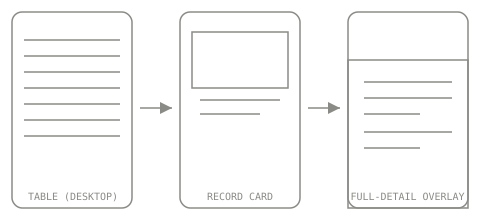
The point of this pattern isn't that it looks clean — it's that it's a deliberate information-architecture decision: what does a field user need at a glance versus on demand, and how do you preserve access to the full record without forcing everyone to scroll past it every time. This is the same discipline SAP Fiori, Salesforce Lightning, and other enterprise mobile products apply to dense record types, and arriving at it independently — rather than copying a pattern library — is part of what I'd call out here.
From responsive web to a genuinely native app
Capital Tools needed something a mobile browser can't provide: real hardware access, specifically to a barcode scanner. The team's direction was Capacitor — a framework that wraps the existing Angular web application inside a native iOS/Android shell, giving it access to native device APIs (camera, Bluetooth, filesystem) while reusing the same codebase and, critically, the same design system.
That decision had UX consequences I had to design around, not just development consequences the engineering team absorbed alone:
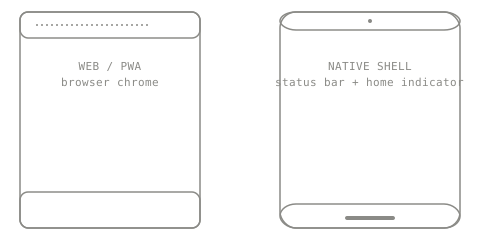
- Browser chrome versus native chrome. A PWA in Safari still carries browser UI (the address bar, in particular) and can't reach the hardware APIs the app actually needed. A Capacitor-wrapped app removes that chrome entirely and behaves like an installed native app — which meant redesigning navigation without assuming a browser's Back button, history stack, or visible URL.
- Platform theming, not just app theming. Matching the existing dark-themed top bar and bottom bar meant also theming the iOS status bar to match (light text, dark background) — and designing the bottom navigation bar to visually absorb the iOS Home Indicator, which can't be recolored directly. Small detail, but it's the difference between "an app with a dark mode" and something that feels considered on the actual device.
- Where the native scanner and the web UI meet. The barcode scanner was being built separately as native iOS functionality. I designed the handoff between scanning a barcode and landing back inside the Angular-rendered record view — treating it as one continuous task for the user, not two separate apps that happen to share a launch icon.
FIG_02 — web vs. native shell
Designing for iOS without an iOS background
I'd mostly worked on web applications before this. Rather than porting web UI conventions directly onto iOS — which tends to feel subtly wrong to native users even when it's functionally fine — I worked through Apple's Human Interface Guidelines deliberately, translating web habits into their native equivalents rather than assuming they'd carry over:
| Web habit | Native iOS approach I designed toward |
|---|---|
| Dropdown menu | Segmented control / native picker |
| Modal dialog | Sheet / bottom sheet, gated appropriately by task weight |
| Table row | List with disclosure, or record card |
| Tag / chip | No direct iOS equivalent — capsule-styled buttons for filters, plain labels/badges for passive status |
I met directly with the Swift developer building the native scanner to align on this rather than handing off a pure-web mockup and hoping it translated. Specific decisions that came out of that collaboration and independent HIG research:
- Bottom app bar placement for the primary nav toggle, moved from its desktop top-left position to the bottom of the screen on mobile — deliberately breaking from the desktop pattern because thumb-reach ergonomics on a one-handed device matter more than positional consistency with the desktop layout.
- Horizontal-scroll status filters (styled as capsule buttons, no visible scrollbar) for filtering the asset card list by status — the same interaction pattern used in Google Maps and Apple Maps for category filters, chosen specifically because field users needed to filter fast with a thumb, not open a dropdown.
- Bottom sheets that slide up over the bottom app bar, consistent with both Material and iOS conventions, rather than competing for the same screen real estate.
- A single detail container with drill-in states (record → map, record → scanned image) instead of stacking multiple dialogs — because for a record with links to a map and a scanned barcode image, stacked modals get confusing fast, and a drill-in-and-back pattern keeps the user oriented.
None of this required me to become an iOS developer. It required treating "I don't have iOS experience" as a research problem to solve quickly, the same way I approached the wireline/hardwire domain gap on PIM — HIG documentation, direct conversation with the engineer who understood the platform constraints, and a willingness to deliberately not just reskin the web app.
Outcome, honestly stated
- A working mobile pattern (card + full-detail overlay) that solves the dense-record problem without hiding data from users who need it.
- A functioning design bridge between the Angular web application and a genuinely native iOS shell — status bar, home indicator, and navigation all treated as design surfaces, not implementation afterthoughts.
- A collaborative working relationship with a native iOS developer that let native hardware integration (barcode scanning) and web-rendered UI feel like one continuous task rather than two disconnected apps.